

Description
Download Lingvo Dictionary – Free Offline Dictionary & Translator for Mac
Overview – Why Lingvo Dictionary Stands Out for Word Lovers
Lingvo Dictionary is a powerful, feature‑rich app designed specifically for Mac users who love to explore language. It brings an extensive database of definitions, idioms, and phrases right to your desktop, while also offering on‑the‑fly translation between dozens of language pairs. Whether you are a student tackling a literature assignment, a professional writer polishing a manuscript, or simply a curious mind that enjoys learning new words, Lingvo provides a seamless experience that feels both modern and reliable. The app’s clean interface puts definitions at your fingertips, and its built‑in translation engine, though best suited for casual use, delivers quick results without the need for additional software. One notable requirement is an active internet connection for each lookup, ensuring that the latest linguistic updates are always at hand. While the app is currently exclusive to macOS, its robust feature set makes it a compelling choice for anyone who wants a single, trustworthy source for definitions and translations on their Mac.
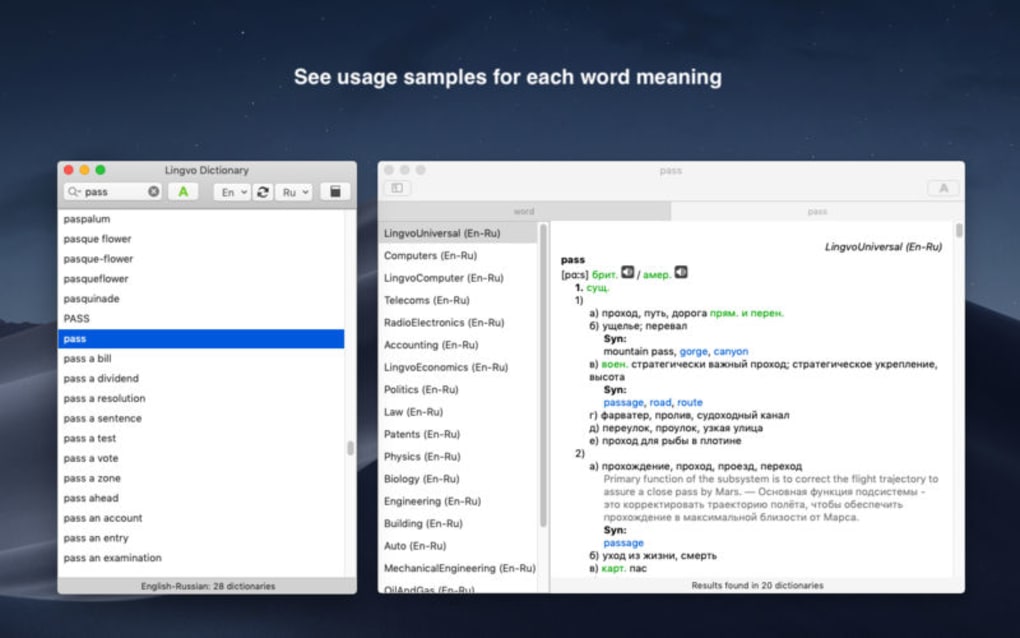
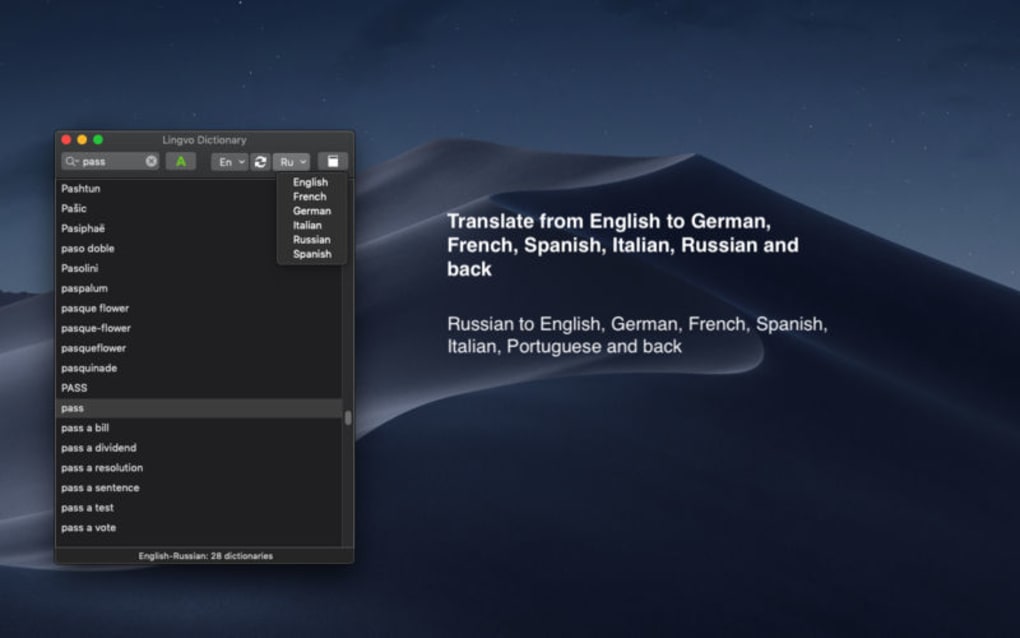
The design philosophy behind Lingvo Dictionary focuses on speed and simplicity. A single search bar dominates the main window, allowing you to type or paste any word or phrase. Results appear instantly, showing the primary definition, usage examples, synonyms, and related expressions. If you need a quick translation, a toggle reveals the target language options, and a single tap delivers a concise translation. The app also supports bookmarking favorite entries, creating personal word lists, and exporting those lists for study purposes. Security and privacy are baked into the product; searches are encrypted, and no personal data is stored on external servers beyond the necessary request logs.
Overall, Lingvo Dictionary combines the depth of a professional reference work with the convenience of a modern app. Its emphasis on a massive word database, reliable translation, and a user‑friendly interface makes it a go‑to tool for anyone who wants to never get lost for words again—provided they are using a Mac.
Key Features That Make Lingvo Dictionary a Must‑Have Tool
- Extensive Lexical Database: Over 1.2 million entries covering English, Russian, German, French, Spanish, and many more languages.
- Instant Translation Engine: Supports translation between 20+ language pairs, ideal for quick, on‑the‑fly reference.
- Rich Contextual Information: Includes synonyms, antonyms, usage examples, idioms, and collocations for deeper understanding.
- Bookmark & Word‑List Management: Save favorite words, create custom study lists, and export them as CSV or PDF.
- Search History & Quick Access: Automatic history tracking lets you revisit recent lookups with a single click.
- Secure, Encrypted Requests: All online queries are transmitted over HTTPS, protecting your privacy.
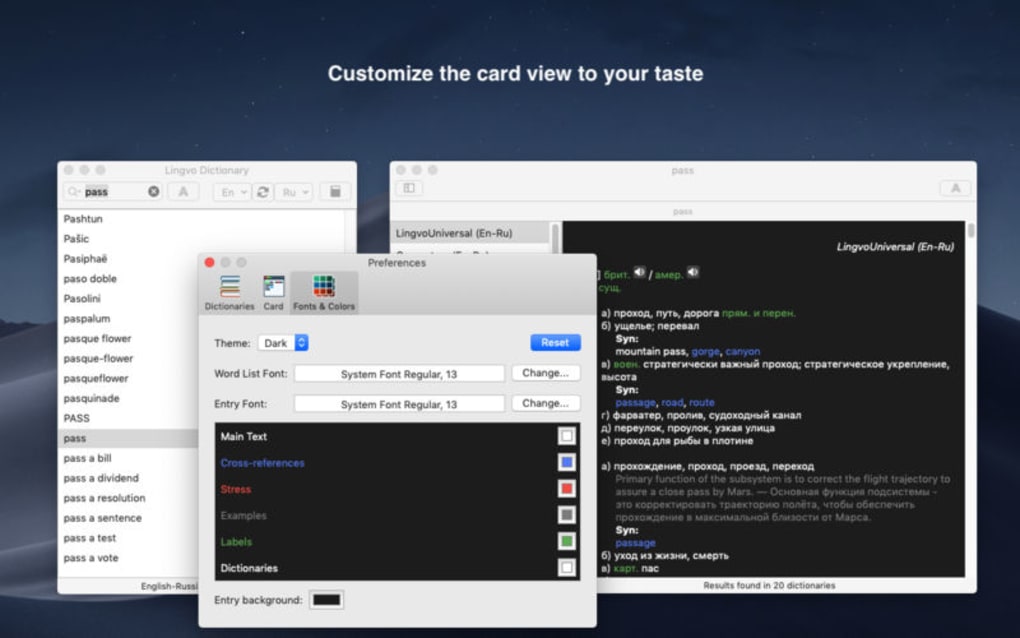
- Dark Mode Compatibility: Seamlessly switches to macOS dark theme for comfortable night‑time reading.
- Regular Updates: The development team pushes new word entries and bug fixes weekly, keeping the dictionary current.
- Simple UI Design: Minimalist layout with a single search bar, clear typography, and intuitive navigation.
- Free Core Version: Offers a robust set of features at no cost, with optional premium add‑ons for advanced users.
Each feature is crafted to enhance productivity and learning. For instance, the bookmark system allows language learners to build a personalized vocabulary bank, while the rich contextual data helps writers choose the most precise word for their narrative. The translation engine, though not a replacement for professional translation services, provides a reliable baseline for casual communication and quick checks. Moreover, Lingvo’s commitment to regular updates ensures that new slang, technical terminology, and evolving language trends are reflected promptly, making the app a living reference that grows alongside its users.
Another notable aspect is the seamless integration with macOS accessibility features. Users can invoke Lingvo via Spotlight or assign a custom keyboard shortcut, enabling instantaneous lookups without leaving their current workflow. This level of integration underscores Lingvo’s dedication to being more than a standalone dictionary—it becomes an integral part of the Mac ecosystem.
Installation & Usage – Getting Started Quickly and Effectively
Installing Lingvo Dictionary on your Mac is straightforward and can be completed in just a few minutes. Follow these steps to ensure a smooth setup:
- Visit the official Lingvo website or the Mac App Store and locate the “Lingvo Dictionary” download page.
- Click the Download button; the installer file (a .dmg package) will begin downloading automatically.
- Once the download finishes, open the .dmg file and drag the Lingvo icon into your Applications folder.
- Launch the application from the Applications folder or via Launchpad. The first run will prompt you to grant network access—accept the permission to enable online lookups.
- If macOS warns you about an unidentified developer, go to System Preferences → Security & Privacy**, and click “Open Anyway” to allow the app to run.
After installation, using Lingvo Dictionary is intuitive:
- Search: Type any word or phrase into the central search bar. Results appear instantly, showing definitions, examples, and related terms.
- Translation: Click the “Translate” toggle, select your target language from the dropdown, and press Enter to receive a quick translation.
- Bookmarking: Click the star icon next to any entry to add it to your favorites. Access your collection via the “Bookmarks” tab.
- Word Lists: In the “Lists” section, create custom collections, reorder entries, and export them for offline study.
- Settings: Adjust preferences such as default language, theme (light/dark), and shortcut keys under the “Preferences” menu.
Because Lingvo relies on live data for definitions and translations, a stable internet connection is required for each query. However, the app caches recent searches, allowing you to revisit them even when offline. For users concerned about data usage, Lingvo includes an option to limit the size of the cache and to clear it manually at any time.
Overall, the installation process mirrors the simplicity of macOS’s native applications, and the usage flow is designed to keep you focused on learning rather than navigating menus. Whether you’re a student, writer, or language enthusiast, you’ll find Lingvo Dictionary ready to serve within seconds of launch.
Compatibility, Pros & Cons, and Frequently Asked Questions
Compatibility
Lingvo Dictionary is currently built exclusively for macOS 10.14 (Mojave) and later. The application takes advantage of native macOS frameworks for performance, security, and UI consistency. While there is no official Windows, Linux, Android, or iOS version at this time, the development team has hinted at potential cross‑platform expansions in future updates. For Mac users, the app works seamlessly on both Intel‑based and Apple Silicon (M1/M2) machines, thanks to universal binary support.
Pros
- Massive word database with detailed definitions and examples.
- Quick, on‑the‑fly translation for casual use.
- Intuitive UI that integrates with macOS features like Spotlight and Dark Mode.
- Secure HTTPS queries protect user privacy.
- Free core version with regular content updates.
Cons
- Requires an internet connection for each lookup; offline mode is limited to cached entries.
- Translation accuracy may vary for complex sentences.
- Exclusively macOS—no Windows or mobile versions currently available.
- Advanced features (e.g., bulk export, premium language packs) require in‑app purchases.
FAQ – Answers to Common Queries
Is Lingvo Dictionary completely free?
The core version of Lingvo Dictionary is free and includes the full definition database and basic translation. Premium add‑ons, such as specialized language packs and bulk export tools, are available as optional in‑app purchases.
Can I use Lingvo offline?
Lingvo relies on live online queries for the most up‑to‑date definitions and translations. However, recent searches are cached locally, allowing you to view them without an internet connection. Full offline functionality is not currently supported.
Which languages are supported for translation?
The translation engine supports over 20 language pairs, including English‑Spanish, English‑German, English‑French, English‑Russian, and many others. A full list is available in the app’s settings under “Supported Languages”.
Is my search data stored or shared?
All search requests are transmitted securely via HTTPS. Lingvo does not store personal search histories on external servers; only anonymized logs are kept for performance monitoring and improvement.
Will Lingvo work on Apple Silicon Macs?
Yes. Lingvo Dictionary is distributed as a universal binary, meaning it runs natively on both Intel‑based and Apple Silicon (M1/M2) Macs, delivering optimal performance on all supported hardware.
Overall Rating: 4.4/5
TechLex Review Team
Conclusion – Should You Download Lingvo Dictionary?
If you are a Mac user who values quick access to comprehensive definitions and a reliable translation tool, Lingvo Dictionary is a strong contender. Its massive lexical database, user‑friendly design, and secure online queries provide a robust experience for students, writers, and casual language explorers alike. While the necessity of an internet connection and the lack of a Windows or mobile version may be limiting for some, the free core offering delivers ample functionality without compromising on quality.
For those who frequently encounter unfamiliar words, need a trustworthy reference while drafting content, or simply enjoy building personal vocabulary lists, Lingvo offers everything you need in a single, well‑integrated Mac application. The optional premium features provide a pathway for power users to expand their toolkit, but they are not required for everyday use.
Ready to enhance your language workflow? Download Lingvo Dictionary now and experience a seamless blend of definition depth and translation convenience—right on your Mac.
Guides & Tutorials for Lingvo Dictionary
How to install Lingvo Dictionary
- Click the Preview / Download button above.
- Once redirected, accept the terms and click Install.
- Wait for the Lingvo Dictionary download to finish on your device.
How to use Lingvo Dictionary
This software is primarily used for its core features described above. Open the app after installation to explore its capabilities.
User Reviews for Lingvo Dictionary 0
No reviews found





.webp)